I Gave My Homelab an AI Brain: Documenting Everything and Wiring It to Telegram with Hermes

At some point, every homelab builder reaches the same moment. You’re explaining your setup to someone and they ask “wait, where does Plex actually run?” and you pause for a second longer than you should. The architecture lives in your head — assembled piece by piece over months of migrations, refactors, and late-night experiments. It works, you know that much. But is what you think is running actually what’s running?
That pause led to a two-day project: using Hermes Agent to read every blog post, config file, and note I had, build a structured knowledge base about my homelab, SSH into every container to verify the facts against live state — and then wire the whole thing to a Telegram bot so I can query, control, and automate it from my phone. This post covers the full journey: the documentation sprint, the real discrepancies that SSH verification surfaced, the Hermes installation, the Telegram gateway setup, and what the AI brain can actually do today.
The Documentation Problem
After decomposing everything into LXC containers, the homelab was in its best state ever — architecturally. Nine containers, clean isolation, right-sized resources, daily backups. But the operational knowledge was still fragmented: blog posts described intent, homelab-facts.md had point-in-time snapshots, and reality had quietly drifted from both.
That’s the subtle problem with well-running infrastructure: the better it runs, the less you touch it, and the less you touch it, the less accurate your mental model gets. I needed a living knowledge base — one that could be queried, cross-referenced, and updated when things change. And I wanted the agent that maintains it to also be the agent that operates the infrastructure on demand.
Step 1 — Building the Knowledge Base
Hermes ingested everything: six blog posts documenting the migration history, homelab-facts.md, the arrstack compose files, and the Caddy configuration. From those sources it built a structured wiki at ~/Desktop/Homelab/wiki/ using the llm-wiki skill format — YAML-front-matter markdown pages organized into entities, concepts, and queries.
Each entity page covers a single container or host: its IP, running services, resources, configuration notes, and confidence level. The confidence field matters: it forces explicit tracking of what was documented, what was inferred, and what needed live verification.
# wiki/entities/ct-103-media-servers.md (excerpt)
---
title: CT103 — Media Servers
type: entity
tags: [lxc, media, igpu, docker, plex, jellyfin]
confidence: high
sources: [homelab-facts.md, homelab-full-lxc-migration.html]
---

## Services
- Plex Media Server — *method TBC by SSH*
- Jellyfin (Docker)
- Tautulli (Docker)
- Jellystat (Docker)

## iGPU Passthrough
Both Plex and Jellyfin share the Intel UHD iGPU via:
  lxc.cgroup2.devices.allow: c 226:* rwm
  lxc.mount.entry: /dev/dri dev/dri none bind,optional,create=dir
The wiki took about forty minutes to scaffold. That was the easy part.
Step 2 — SSH Verification: Where the Reality Diverged
With the wiki skeleton complete, Hermes SSH’d into each container in turn and ran targeted verification commands: checking systemd units, Docker container states, listening ports, disk usage, service versions. The goal was to either confirm every documented fact or flag a discrepancy.
The discrepancies were more interesting than expected:
plexmediaserver.service, v1.43.2). No Plex container exists./opt/arrstack/ from an earlier migration attempt. Live data is in /opt/stacks/arrstack/. Orphaned dirs cleaned up.The Plex finding is the one that would have caused hours of debugging without this verification pass. Plex was running in Docker during earlier phases — it was migrated to native systemd for better iGPU integration and lower overhead. The blog posts reflected the old state. Any automation that assumed a Docker container named plex would have silently failed. Now it knows to check systemctl status plexmediaserver.

After two days of verification and correction, the wiki reflected actual live state for every container. Confidence levels updated, discrepancies documented, stale config cleaned up. The knowledge base went from “probably right” to “SSH-verified.”
Step 3 — Installing Hermes Agent
Hermes Agent is an open-source AI agent framework by Nous Research that runs on Linux, macOS, and Windows. It supports any LLM provider, has a multi-platform gateway (Telegram, Discord, Slack, and a dozen others), and crucially: it maintains persistent memory and skills across sessions. That last part is what makes it useful as a homelab brain rather than just a chat tool.
Installation
On Linux or macOS (also works in Git Bash on Windows):
curl -fsSL https://hermes-agent.nousresearch.com/install.sh | bashThe installer handles the Python environment, dependencies, and PATH setup. After it completes:
# Interactive setup wizard — model, provider, API keys
hermes setup

# Verify everything is wired correctly
hermes doctor
Hermes supports 20+ providers: OpenRouter, Anthropic, OpenAI, DeepSeek, GitHub Copilot, Google Gemini, and more. For this setup I use GitHub Copilot, which requires the OAuth device code flow — hermes model handles that interactively. The config lives at ~/.hermes/config.yaml and secrets in ~/.hermes/.env.
Configuring Persistent Memory
The agent stores two types of durable knowledge: user profile facts and general memory notes. These are injected into every session, so Hermes walks in already knowing the homelab topology — no re-explaining required.
# View current memory
hermes memory status

# Memory is also manageable mid-session via the memory tool
# The agent saves facts automatically when it discovers something durable:
# - Container IPs and roles
# - Service deployment method (native vs Docker)
# - Verification results and anomalies found
After the verification sprint, memory contained every verified container fact: CT103 Plex runs native systemd, CT104 is decommissioned, Jarvis is on Tailscale at 100.126.123.7, NAS credentials and path layout, Docker TCP endpoints for Homepage. When a new session starts, the agent is already orientated.
Skills — Reusable Procedures
Hermes saves complex workflows as skills — structured markdown documents with YAML frontmatter that get loaded into future sessions. After the homelab verification sprint, the homelab topology was persisted as a skill. When I ask “what’s running on CT107?” Hermes already knows the arrstack compose path, the VPN dependency chain, and the correct SSH target. It doesn’t have to rediscover it.
# List installed skills
hermes skills list

# Install a skill from the hub
hermes skills install homelab-facts

# Browse the skills catalog
hermes skills browse
Step 4 — The Telegram Gateway
The CLI is fine for interactive sessions, but the real value is the Telegram gateway — the agent runs as a background service and receives messages directly from your phone. The same agent, the same tools, the same memory: just a different input surface.
Creating the Telegram Bot
- Open Telegram and search for @BotFather
- Send
/newbot— choose a name and username - Copy the bot token (format:
1234567890:ABCDEFxxxxxx) - Start a chat with your new bot and send any message (so Telegram registers your chat ID)
Configuring the Gateway
# Interactive gateway setup — select Telegram, paste your bot token
hermes gateway setup

# Hermes will detect your chat ID automatically on the first message.
# You can also set it explicitly:
hermes config set telegram.allowed_users "285978047"  # your Telegram user ID
Installing as a Background Service
On Windows, Hermes registers a Windows service. On Linux, it uses systemd. Either way, the gateway starts on boot and survives SSH disconnects:
# Install and start the gateway service
hermes gateway install
hermes gateway start

# Verify it's running
hermes gateway status

# Check logs if something's off
hermes gateway logs --tail 50

# Or directly:
# Windows: %LOCALAPPDATA%\hermes\logs\gateway.log
# Linux:   ~/.hermes/logs/gateway.log
Once the service is up, send a message to your bot on Telegram. The agent responds with full tool access — the same terminal, browser, SSH, and memory tools available in the CLI. The Telegram-specific addition is the /commands menu, which lists what the bot can do, and the approval flow for destructive commands (a terminal command flagged as potentially dangerous gets a thumbs-up/thumbs-down prompt before it runs).
ssh-add C:\Users\anass\.ssh\id_ed25519), and Hermes uses it transparently.
The Architecture: What the Brain Can See
Telegram (phone)
       │
       ▼
Hermes Gateway (Windows desktop — always-on service)
       │
       ├── SSH ──────────────────────────────────────────────────────┐
       │    ├── CT101: AdGuard Home (.70) — DNS queries, filter lists │
       │    ├── CT102: Caddy + cloudflared (.71) — TLS, routes        │
       │    ├── CT103: Plex (native systemd) + Jellyfin (.72)         │
       │    ├── CT105: n8n + yt-dlp worker (.75) — workflow triggers  │
       │    ├── CT106: Scrypted (.76) — camera status                 │
       │    ├── CT107: Arrstack — Gluetun/qBit/Radarr/Sonarr (.77)   │
       │    ├── CT108: Homepage + Dockhand (.78) — dashboard          │
       │    ├── Jarvis: Gitea + Vaultwarden (Tailscale 100.126.123.7) │
       │    └── NAS: Synology DS416play (10.0.0.10)                  │
       │                                                              │
       ├── Plex API ──── http://192.168.20.72:32400/status/sessions   │
       ├── qBittorrent ── http://192.168.20.77:8080/api/v2/           │
       ├── n8n webhook ── https://n8n.semesmieh.com/webhook/…         │
       └── Browser ───── https://home.semesmieh.com (screenshots)    │
                                                                      │
              Persistent Knowledge Base (memory + wiki)              │
              Verified: SSH-confirmed, June 2026 ─────────────────────┘
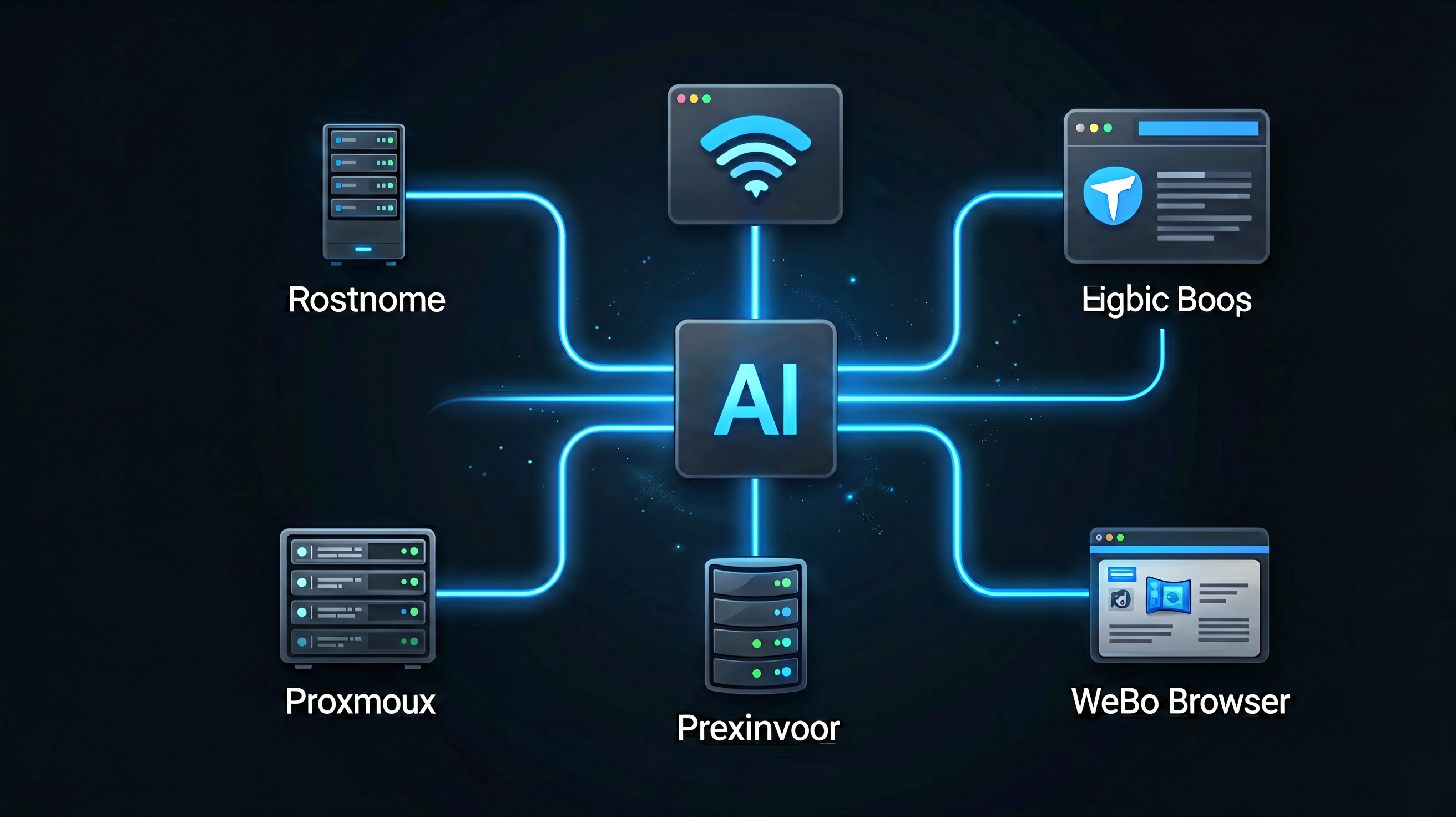
What the Brain Can Do: Real Examples
Plex Monitoring
The most common query. Plex exposes a sessions API at port 32400 that returns active streams, user, quality, progress, and whether transcoding is active. The agent pulls the Plex token from the Preferences XML and queries it directly:
Me: "Anyone watching Plex?"

Hermes: Checks /status/sessions via the Plex API →
        "No active sessions right now. Library: 3,549 movies, 190 TV shows."
When someone is watching, it returns the title, user, resolution, and whether it’s direct-playing or transcoding (which matters for CPU load on the i7).
Arrstack — Download Pipeline
CT107 runs eight containers behind a WireGuard VPN tunnel. Querying download state used to mean opening the qBittorrent web UI, which requires VPN or LAN access. Now:
Me: "What's arrstack downloading right now?"

Hermes: SSHs to 192.168.20.77 → queries qBittorrent API →
        Returns active torrents: name, size, progress %, speed, ETA, seeding ratio
The same pattern works for Sonarr and Radarr queues — upcoming releases, missing episodes, failed grabs. The agent reads the API responses and summarizes them in plain language rather than returning raw JSON.
n8n Automation Triggers
n8n on CT105 runs the homelab’s workflow automation layer. One of those workflows is the Telegram video bot — it has an allowlist of Telegram user IDs that are permitted to request downloads. Adding a user previously meant opening the n8n editor, finding the workflow, editing the allowlist variable, and saving. Now:
Me: "Add user ID 123456789 to the n8n bot allowlist"

Hermes: POSTs to the n8n management webhook → workflow updates the
        global variable → "Done. User 123456789 added to the allowlist."
The same approach works for triggering any n8n workflow that exposes a webhook endpoint: backup jobs, media library scans, notification broadcasts. The agent handles the HTTP call and reports the result.
Homepage Dashboard Screenshot
Me: "Screenshot my homepage"

Hermes: Opens https://home.semesmieh.com in a headless browser →
        Captures the full dashboard → Returns the screenshot inline in Telegram
This sounds trivial but it’s genuinely useful for a quick system health overview without opening a browser. The Homepage widget data — Proxmox CPU/RAM, container states, Plex streams, qBittorrent activity — is all visible at a glance in the Telegram thread.
Infrastructure Queries
Because the agent has SSH access and a verified knowledge base, it can answer questions that would otherwise require opening multiple UIs:
| Query | What Hermes Does |
|---|---|
| “How much space left on the NAS?” | SSH to 10.0.0.10 → df -h /volume1 /volume2 → summarises |
| “Is Caddy healthy?” | SSH to CT102 → systemctl status caddy + checks active routes |
| “What’s on the Proxmox host right now?” | Queries the Homepage widget data or SSH to host → pvesh get /nodes/pve/status |
| “Restart the AdGuard container” | SSH to Proxmox host → pct reboot 101 → confirms service came back up |
| “Check Gitea on Jarvis” | SSH to 100.126.123.7 via Tailscale → docker ps + service health |
Memory and Context Persistence
The thing that separates Hermes from a generic chatbot hooked to a shell is the memory layer. After the verification sprint, memory contains the authoritative facts about every container. When a new Telegram session starts — days or weeks later — the agent already knows:
- CT103 Plex runs native via systemd, not Docker — don’t check for a container
- CT104 is decommissioned — skip it entirely
- Jarvis is on Tailscale at 100.126.123.7, requires the Tailscale-routed SSH path
- The NAS has two volumes with different usage profiles
- Docker TLS certs are deployed on CT105 via mutual TLS for the remote Docker API
When infrastructure changes — a new container, a service migration, a version upgrade — the agent updates its own memory. The knowledge base stays current without a manual documentation effort.
Installation Summary
For reference, the complete setup from scratch:
# 1. Install Hermes Agent
curl -fsSL https://hermes-agent.nousresearch.com/install.sh | bash

# 2. Configure model and provider (interactive)
hermes setup

# 3. Health check
hermes doctor

# 4. Configure SSH access to your homelab
#    Ensure your SSH key is loaded:
#    Windows: ssh-add C:\Users\yourname\.ssh\id_ed25519
#    Linux:   ssh-add ~/.ssh/id_ed25519

# 5. Set up the Telegram gateway
hermes gateway setup   # paste your bot token from @BotFather

# 6. Install as background service
hermes gateway install
hermes gateway start

# 7. Verify
hermes gateway status
hermes gateway logs --tail 20

# 8. Test — send a message to your bot on Telegram
#    It should respond within a few seconds
The agent runs on any always-on machine that has SSH access to your homelab. It doesn’t need to run inside the homelab itself. For my setup, it runs on the Windows desktop as a Windows service — starts on boot, survives session logout, logs to %LOCALAPPDATA%\hermes\logs\gateway.log.
What’s Next
The AI brain covers operational queries and reactive automation well. The next evolution is proactive monitoring: scheduled cron jobs that watch for conditions and alert in Telegram without being asked.
Hermes has a built-in cron scheduler that runs agent prompts on a schedule and delivers results to a configured channel. The first scheduled jobs will be simple: daily NAS usage report, weekly arrstack seeding ratio summary, alert if any container has been stopped for more than an hour. The same agent, the same tools — just running autonomously rather than on demand.
The other open thread is the second Proxmox node. With Jarvis already on Tailscale and running Docker workloads, the architecture for a two-node cluster is nearly ready. Live container migration, HA for critical services, rolling Proxmox upgrades without a maintenance window — that’s the next post.
Closing Thought
The homelab documentation sprint surfaced something I didn’t expect: not just stale docs, but actively incorrect assumptions. Plex wasn’t running where I thought it was. A whole container had been decommissioned but was still described as active. Ghost Caddy routes were pointing at IPs that no longer existed. None of this caused visible failures — the services worked fine. But any automation built on those assumptions would have failed silently, and any troubleshooting guided by those docs would have started in the wrong place.
The AI-verified knowledge base changed the relationship with the homelab. It’s not a black box I operate by instinct anymore — it’s a documented system with known state, where every deviation from expected behaviour surfaces immediately because there’s a baseline to compare against. The Telegram control surface is the operational layer on top: faster than opening five browser tabs, persistent context across sessions, and smart enough to know that CT103’s Plex is a systemd service, not a Docker container.
Infrastructure that knows itself is infrastructure you can reason about. And infrastructure you can reason about from your phone, at any hour, without a laptop — that’s the thing I didn’t know I needed until it existed.